
Installing and upgrading (OVA)
Installing
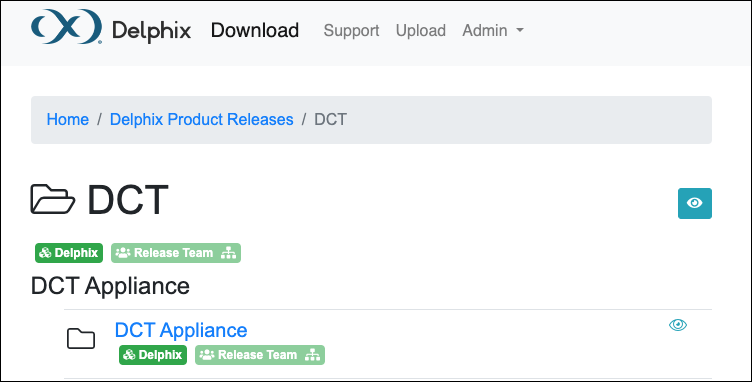
The process for deploying DCT Appliance involves downloading an OVA image file and installing it. The OVA file or link to the AMI can be found on the Delphix downloads site, under the DCT Appliance folder of the DCT area (not in the Delphix Engines area).
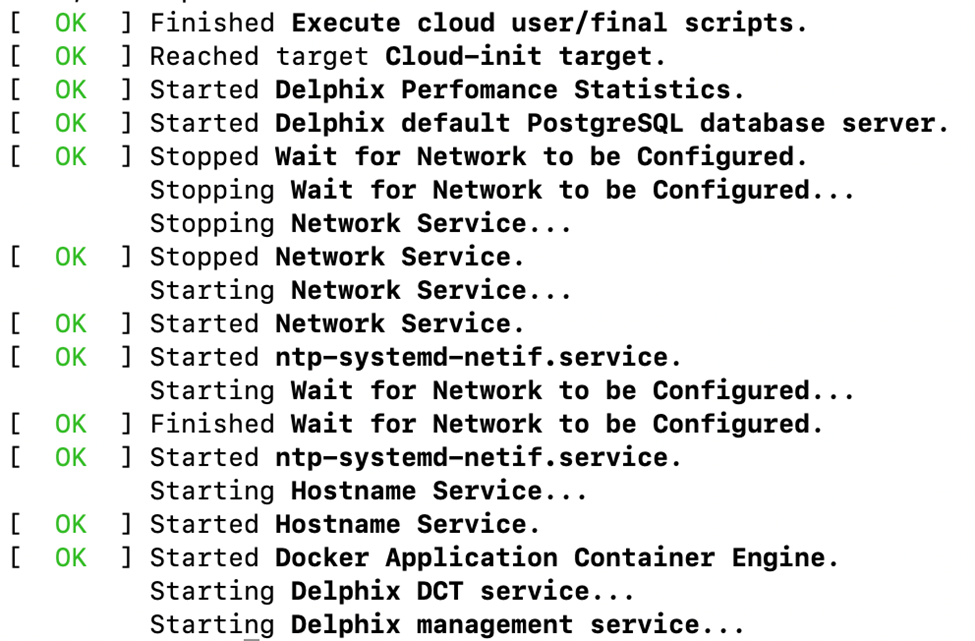
You must then use the VM console and wait for the Delphix Management Service and Delphix DCT Service (new) to come online, which can take up to 30 minutes:
Setup
Use a supported web browser to access the DCT address and enter the default sysadmin credentials when prompted:
Username: sysadmin
Password: sysadmin
On the first login, there will be a prompt to change the default password for security purposes.
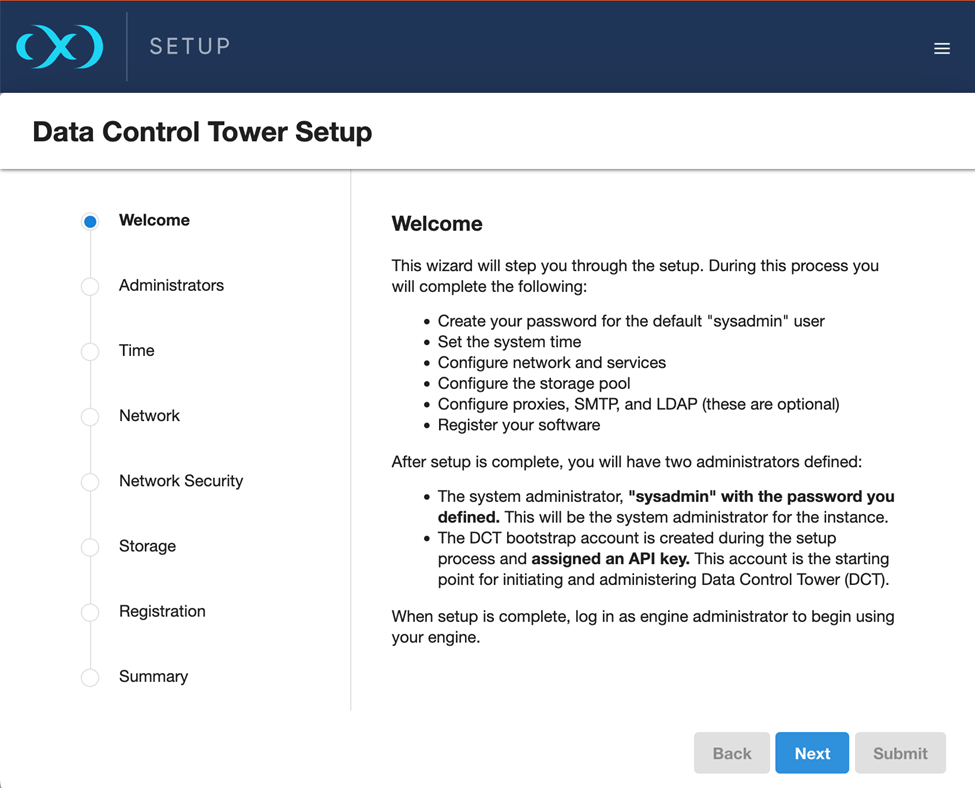
When the setup starts, a Welcome screen shows text detailing the DCT setup process:
On the next page, you must choose a password for the sysadmin user and enter an email address. You will also need to copy and save a DCT bootstrap API key, which replaces the need to obtain a bootstrap API key from the Docker-Compose/Kubernetes logs for existing DCT form factors.
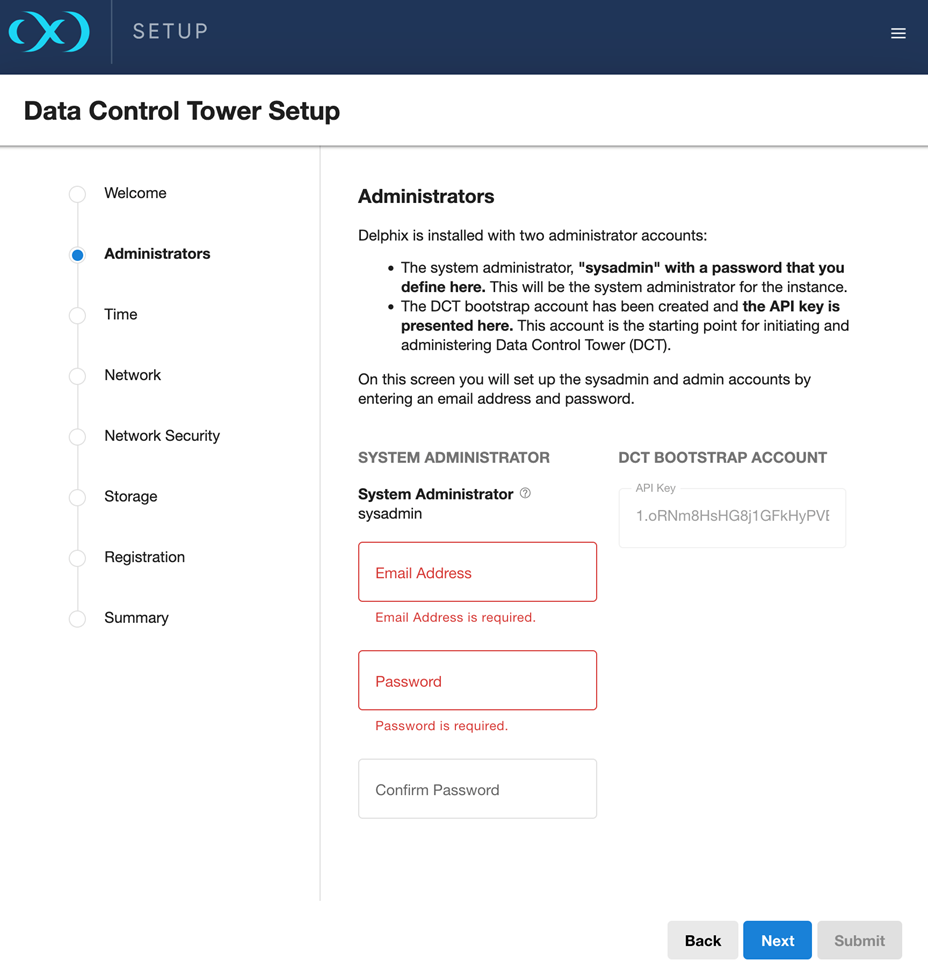

After initial setup, you will have the ability to re-generate a bootstrap API key via the server setup screen.
Navigate through the Time, Network, Network Security, Storage, and Registration sections and apply your configurations:
In the Network Security page, the KeyStore/HTTPs configuration must be used to configure the TLS certificate of the inbound HTTPs interface (nginx) of the DCT appliance. This replaces the need to configure an ingress for Kubernetes deployments.
The Trust Store configuration can be used to configure certificate authorities that DCT should trust when verifying TLS connections to Engines or Hyperscale orchestrators, which will be connected to the DCT appliance. This replaces the manual edits to values.yaml for Kubernetes deployments.
The DSP and STUNNEL SERVER sections can be ignored for DCT.
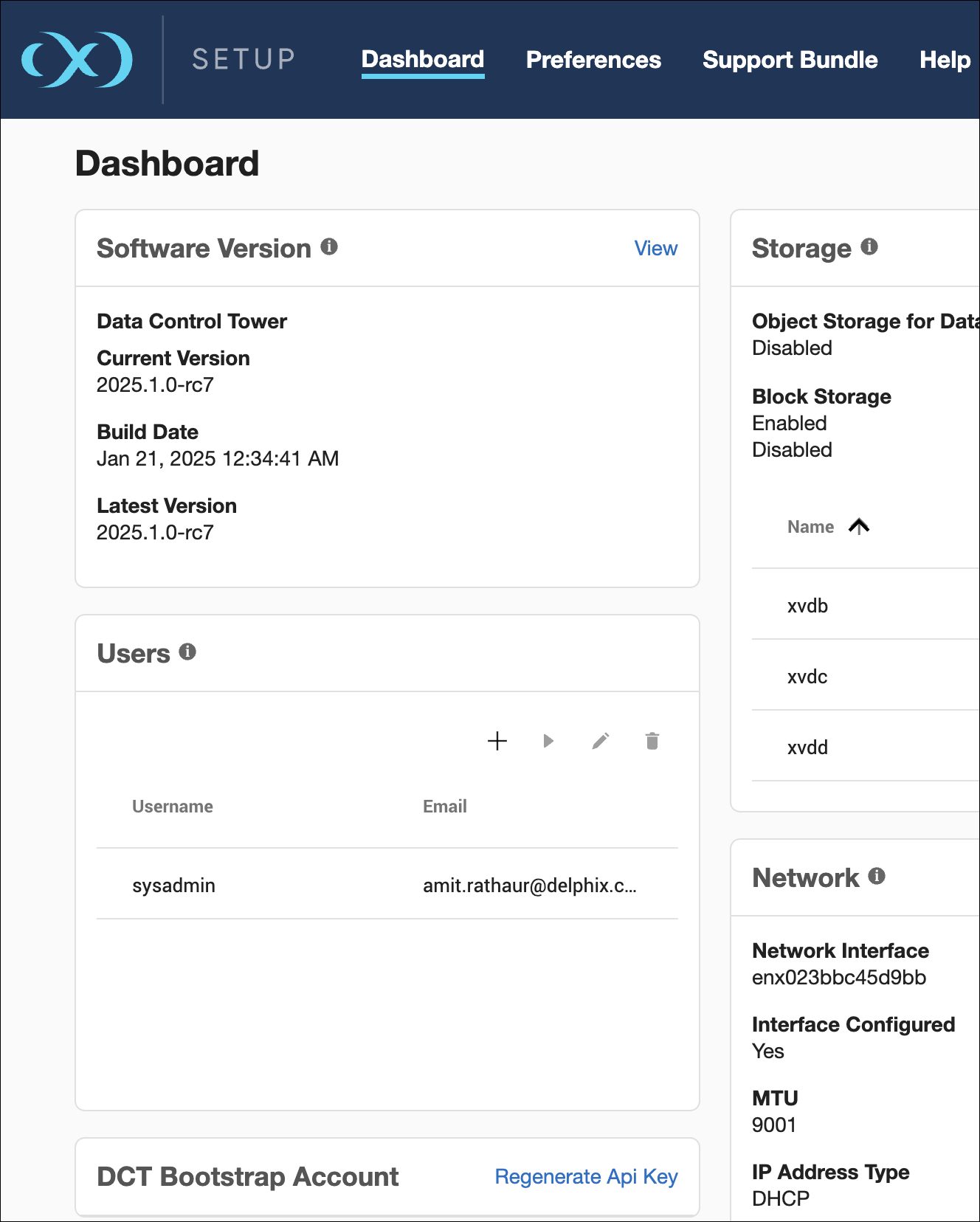
Note on the Storage page, use of Object Storage for DCT Engines is not supported. Block storage disks will be used to store both the Management Service metadata (very minimal) and DCT metadata. A minimum of 50GB of storage is recommended (but the enforced minimum is lower).
Sections irrelevant to DCT are not shown. Configuration of phone home, SAML/SSO, LDAP reside in the DCT application itself (accessible post setup) and not in the server setup.
Users then review the Summary screen and click Submit, which configures DCT appliance and restarts the applications.
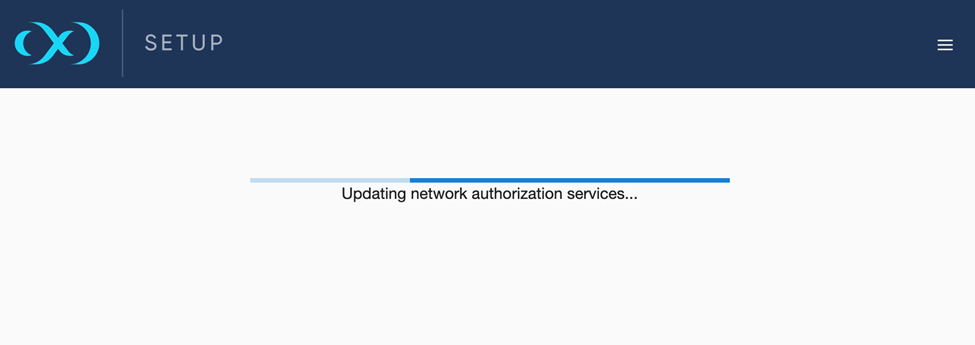
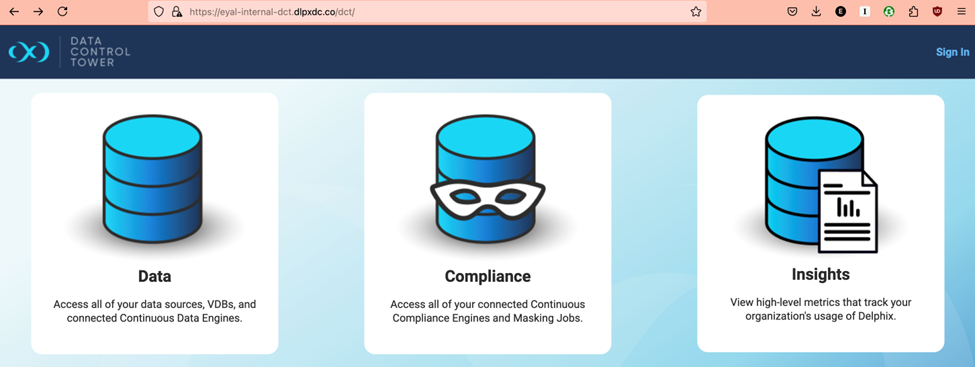
Post restart, browsers are redirected to the DCT UI application, which runs exclusively on HTTPs (HTTP redirects to HTTPs) under the /dct prefix. For example, https://<engine-url>/dct.
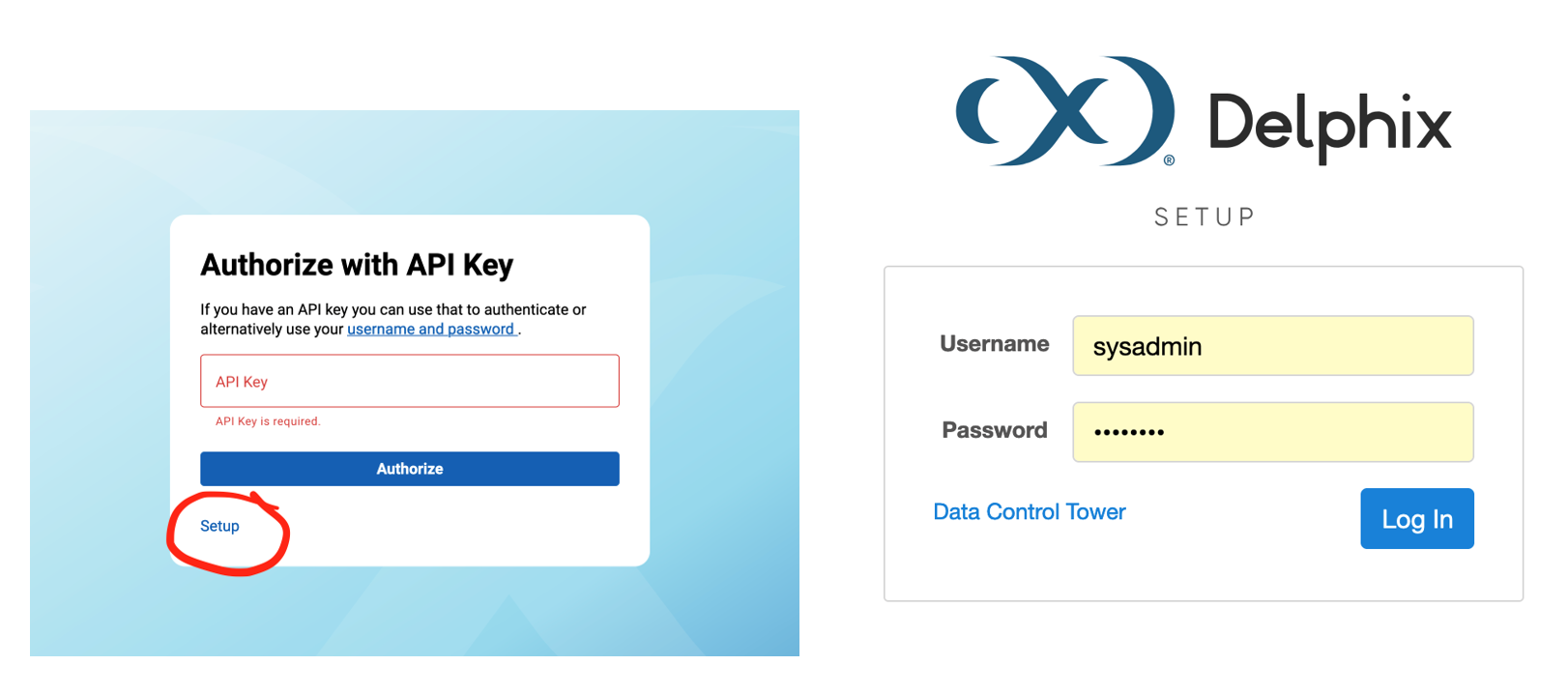
You can log in using the Bootstrap API key retrieved during initial setup, via the sign-in and API Key hyperlinks. Another option is to regenerate a new Bootstrap API key via the Setup app; a hyperlink to the Setup app is shown on the DCT login screen and vice versa.
Post login, the DCT UI and API experience is similar to the DCT engine UI via Kubernetes and OpenShift.
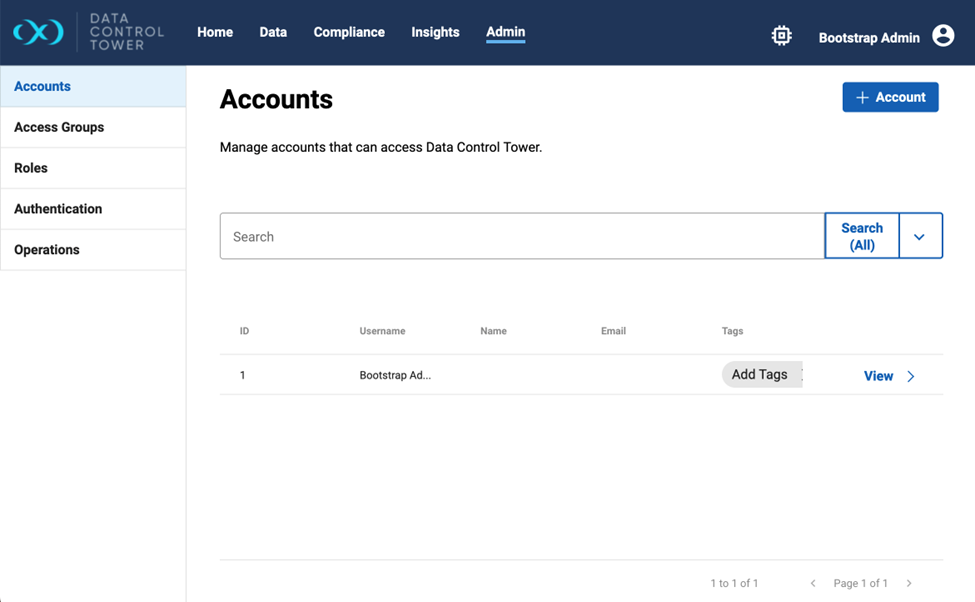
DCT accounts, roles, authentication, etc. is managed via the DCT UI, while sysadmin authentication, TrustStore/KeyStore, engine registration, network, and storage can be configured via the Setup UI, as well as regenerating a DCT bootstrap API key (in case admin access to DCT has been lost).
Upgrading
Upgrading a DCT Appliance involves many of the same steps used to upgrade a Delphix engine, but there are important considerations for the DCT form factor. You will need to download the DCT Appliance upgrade image from the Delphix downloads site (in the DCT Appliance folder of the DCT area) and then upload it via the Setup UI or the Setup API. Starting with engine version 28.0.0.0, the setup application will block cross-upgrades (for example, moving from a DCT Appliance to a standard engine or vice versa).
Once you have successfully uploaded the upgrade image, the upgrade process bundles both the operating system and application components into a single update.
As with standard engines, you typically have the option to defer the system reboot after applying the upgrade, then the new DCT application will start running and you can resume normal operations.