Storage tab
The Storage tab on the engine details page to provide detailed information about the space occupied by datasets on the engine. This data can be visualized using an interactive graph.
There are two ways to view this information on the graph:
Component Storage
This option visualizes storage data using a stacked area series chart, offering a detailed breakdown of storage components on the engine. By default, the chart displays data for the last 3 months, with an option to extend the view to the last 6 months using a dropdown. This provides a comprehensive understanding of space allocation and utilization over time.
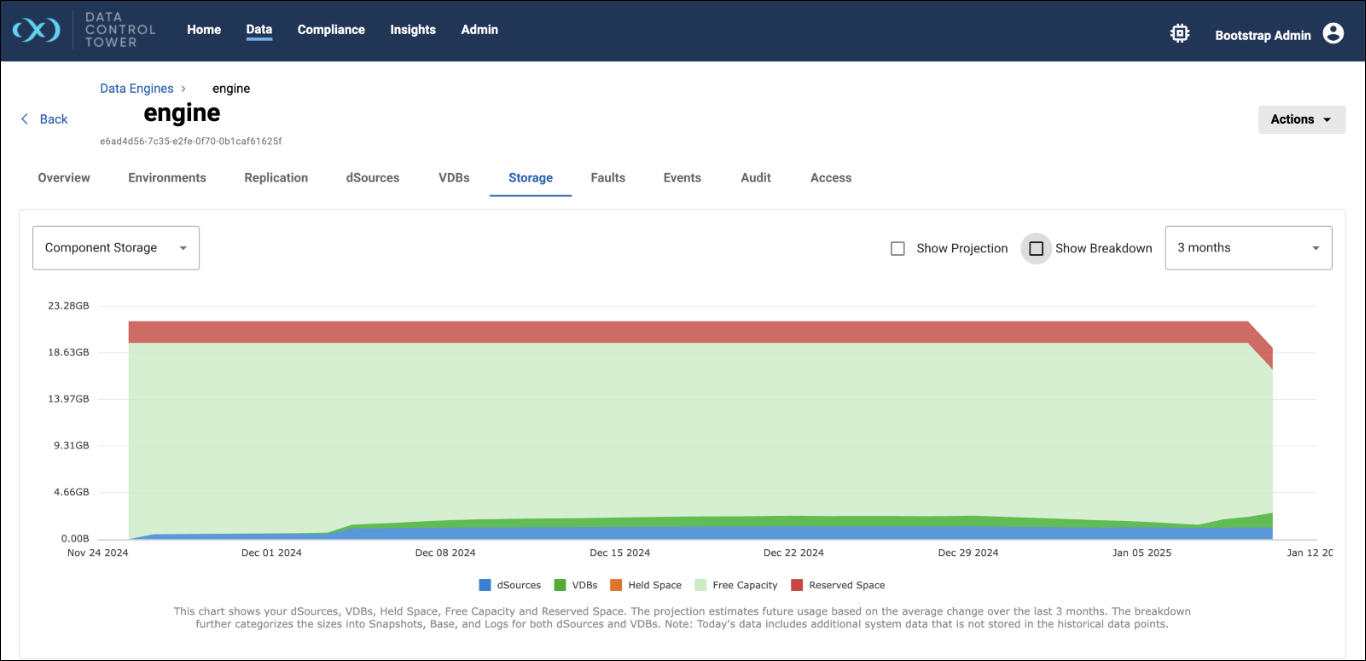
The chart includes the following components:
dSources: Represents the storage used by data sources on the engine.
VDBs (Virtual Databases): Shows the storage utilized by virtual databases.
Held Space: Denotes space reserved or held for specific operations or recovery purposes.
Free Capacity: Indicates the remaining available storage on the engine.
Reserved Space: Displays the space allocated for future use or reserved for system operations.
Additionally, the chart includes the following features:
Show Breakdown: A checkbox that enables further segmentation of dSources and VDBs storage into logs, base, and snapshot sizes, offering a more granular view of storage usage.
Show Projection: A checkbox that allows users to view projected storage trends, helping in future capacity planning.
Size Top N
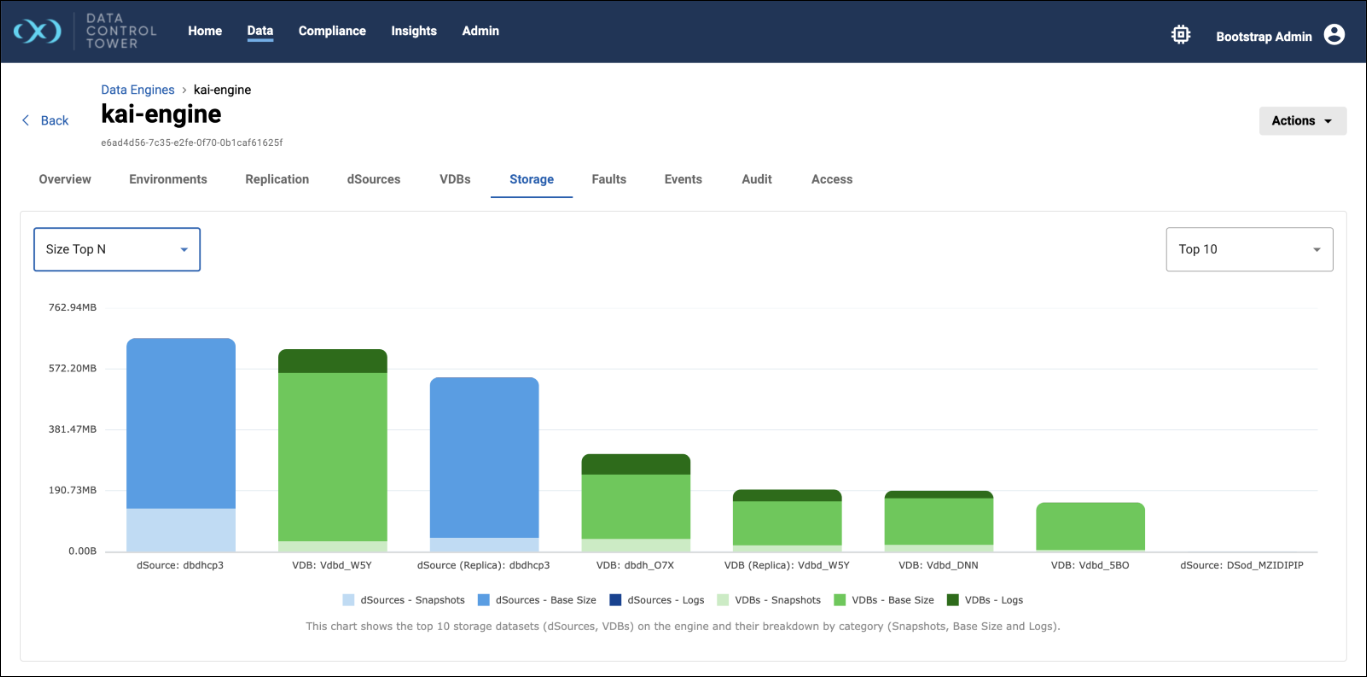
This option visualizes storage data for dSources and VDBs using a stacked bar series chart. The chart displays the top 10 dSources and VDBs by default, with an option to view the top 15 datasets using a dropdown. The visualization provides a detailed breakdown of storage components, including logs, base, and snapshot sizes, allowing users to analyze and compare storage usage effectively.
As of 2025.2.0, users can now see a snapshot and bookmark table per each dataset (CDB, vCDB, or Heldspace) from the Single Engine Storage Capacity table, available from the Storage tab of an Engine details page. Simply expand the dataset on any particular row to see the corresponding snapshot and bookmark table. Above the table on the right, you can see the total shared size being fetched and shown (once fetched).
On the snapshot and bookmarks table itself, there are columns such as Name, Type, Freeable Size, Dependencies, and Expiration Date. There is also a Delete button for each snapshot that is not on a replica dataset.
Hovering the cursor over the Freeable Size and Dependencies column headers shows detailed definitions of the column’s content.
If the Name column does not have bookmarks associated with the snapshot, it will not be expandable.
Freeable Size and Dependencies columns, and the Delete button will not be shown for a bookmark.
Replica datasets will not have a Delete button for snapshots.